
Your website plays a critical role in how potential guests perceive your properties. Before reading descriptions or checking availability, guests often make their first judgement based on visuals. High-quality property images help build trust, communicate value, and encourage guests to explore further and book direct.
Updating the main picture section of your Breakz book direct multi-property template allows you to showcase your accommodation consistently across your website while maintaining a professional layout that works for both user experience and SEO.
This guide walks you through how to add and update your property images in the main image banner section of your multi-property website using WordPress and Elementor:
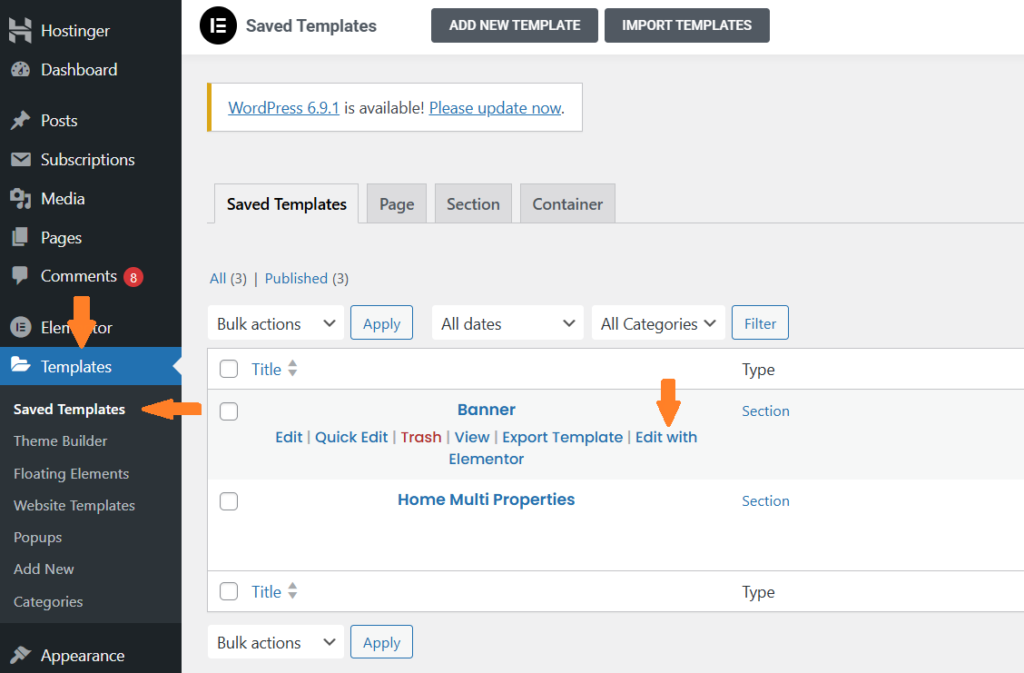
- Log in to WordPress
- Log in to your WordPress Admin Panel to access your website settings and templates.
- Log in to your WordPress Admin Panel to access your website settings and templates.
- Open Saved Templates
- From the left-hand menu, select Templates.
- Click Saved Templates to view all templates used across your website.
- Edit the Banner Template
- Locate the Banner template used in your multi-property layout.
- Click Edit with Elementor to open the visual editor.
- Update the Main Property Image
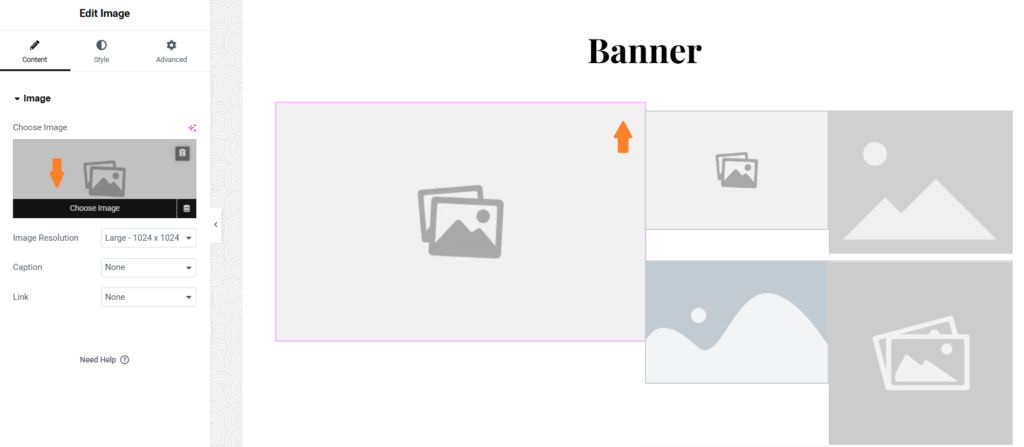
- Click on the main image displayed in the banner section.
- In the Elementor side panel, click Choose Image.
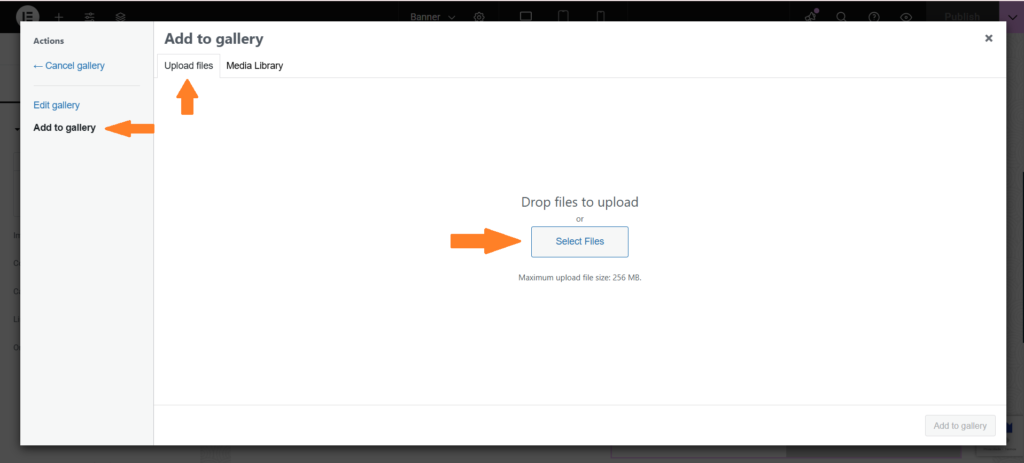
- Upload a new image or select one from your media library. Use a high-quality, landscape-oriented image that best represents your property or brand. This image is the primary visual guests will see first.
- Update the Supporting Images
- Click on each of the four supporting images displayed alongside the main image.
- In the Elementor side panel replace each image by selecting one of the four image slots. Upload images that complement the main image, such as interiors, amenities, views, or lifestyle shots.
Important: Use exactly four supporting images. Adding more or fewer images may break the layout or affect the visual balance of the template.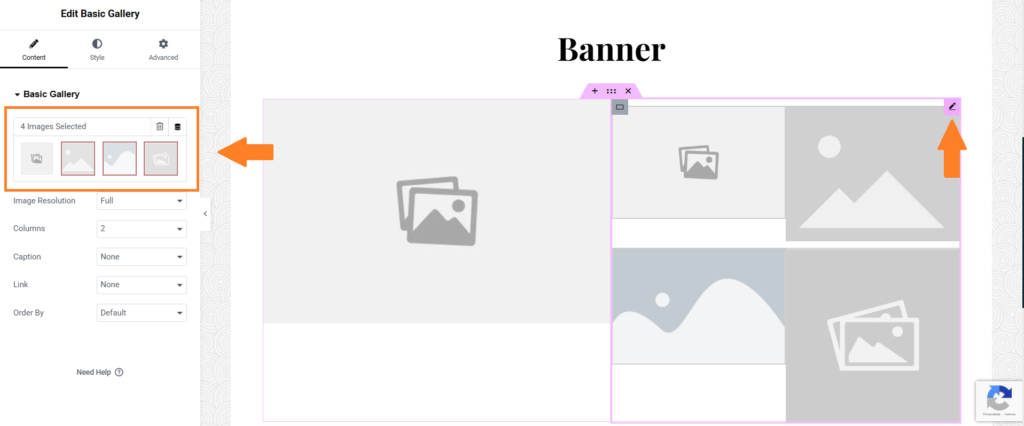
- Save Your Changes
- Once all images have been updated, click Publish to save and apply your changes.
Your updated property images will now appear in the main picture section across your Breakz book direct multi-property website.
Last modified: July 22, 2026